
How to setup a Bluetooth thermal POS printer in Nexchar
You can print receipts using a Bluetooth thermal printer connected to your smartphone. This guide will walk you through the process of setting up a thermal POS printer on an Android phone.
Currently, Bluetooth printing is only supported in Nexchar Point of Sale. This tutorial does not cover USB, WiFi, or Ethernet cable thermal printers.
Setting up an ESC/POS thermal printer
Follow these steps to set up your Bluetooth thermal printer:
Step 1: Turn on your Bluetooth thermal printer.

Step 2: Open the Settings app on your smartphone or tablet, then tap Bluetooth (Settings > Bluetooth).
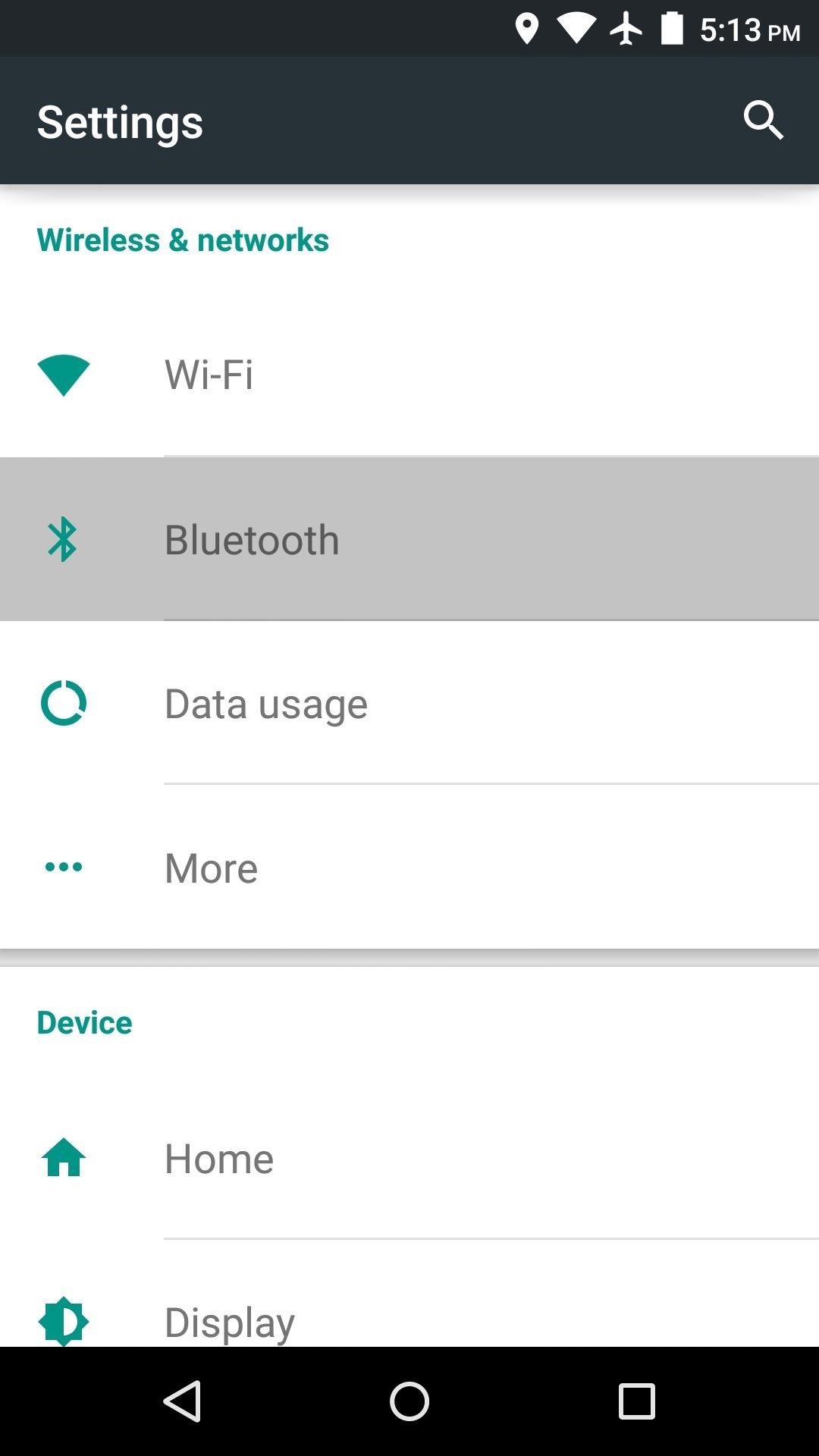
Step 3: Turn on Bluetooth. Your smartphone or tablet will scan for nearby devices. Tap on the name of your Bluetooth thermal printer to start pairing.

Your Bluetooth thermal printer should now be listed under Paired devices.
Testing the thermal POS printer
Open your Nexchar POS App, then go to Settings. Tap Receipt printer settings.

You can see all your paired Bluetooth printers. Tap the Connect button to connect your desired printer. Then tap Test Print to verify the connection.
Note: USB thermal printers and mobile devices are difficult to connect directly. We recommend connecting your USB thermal printer to a computer instead.