
Custom discounts in Nexchar POS
Nexchar POS allows staff to create custom discounts or price overrides. You can use custom discounts for single items or the entire order.
Nexchar POS supports two types of custom discounts: Custom Line-Item Discounts and Custom Cart Discounts.
Custom Line-Item Discounts: These are discounts applied to individual items in the cart. They are ideal for offering specific discounts on particular products.
Custom Cart Discounts: These are discounts applied to the entire order. They can be a flat amount or a percentage of the total cart value, affecting all items in the cart.
Enabling Custom Discounts
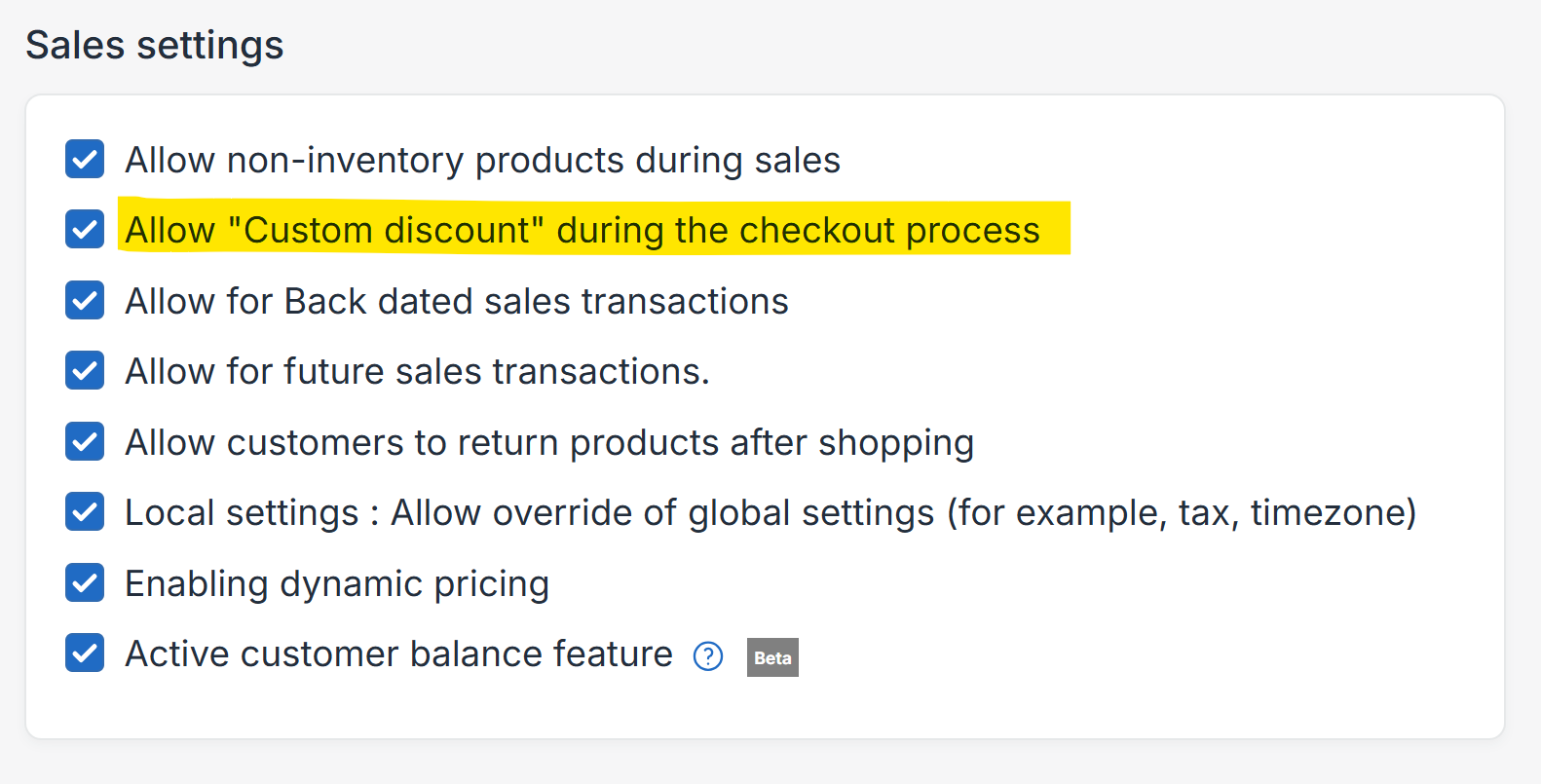
Default settings do not enable the Custom Discount. To enable this feature, follow these steps:
- Log in to your Nexchar back office. Navigate to Menu > Settings > POS Settings.
- In the Sales Settings section, check the box for Allow Custom discount during the checkout process.
- Click the Save button.
Custom line-item discounts
A line-item discount, also known as a product-specific discount, is a discount that's applied to a single product in an order.
- In the sell screen of Nexchar POS, add an item to the cart.
- Click the percent (%) button from your cart.
- A pop-up window appears on your sell screen.
- Select a Discount type.
- Add a discount amount.
- Click the Apply button.
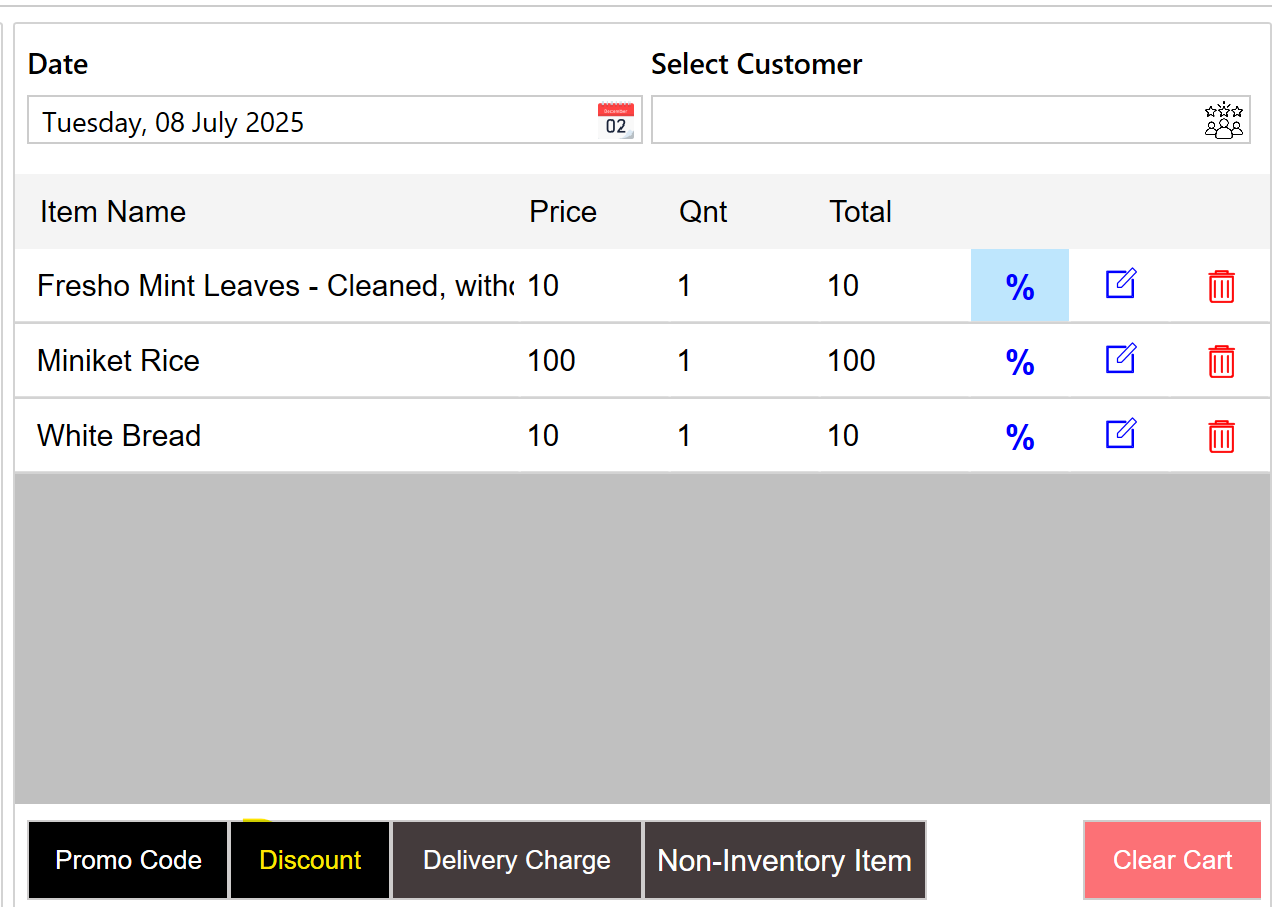
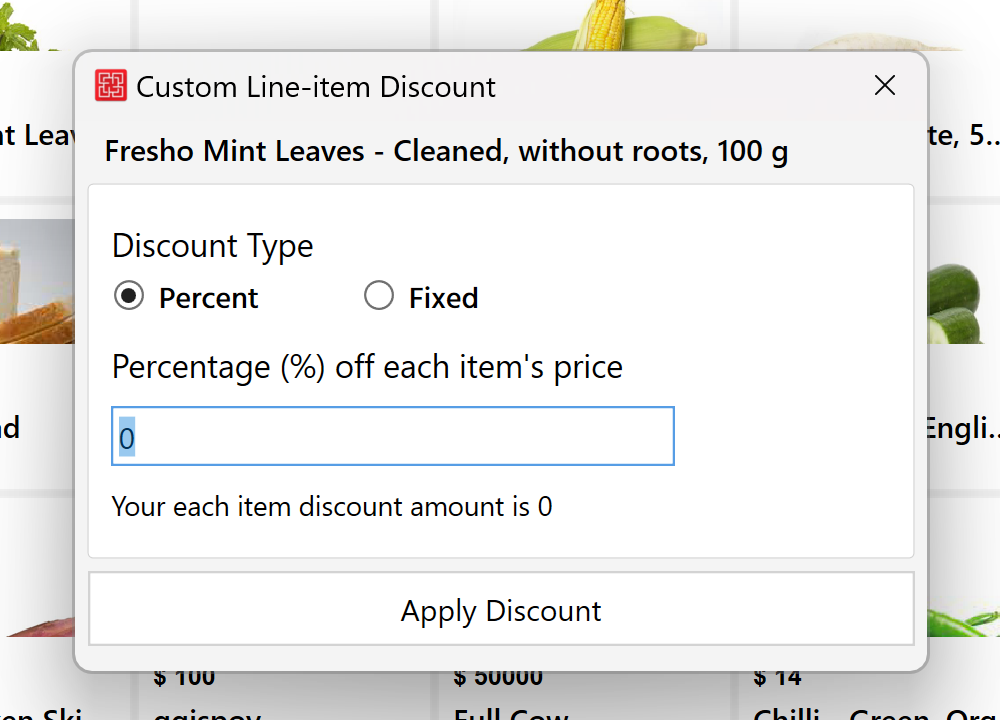
The product price in the cart updates when the discount is applied. You can update and remove a custom line-item discount using the same method.
Custom cart discounts
A cart discount, or an order-specific discount, is applied to all items in the POS cart. A cart discount can be a flat dollar value or a percentage of the cart value. To apply this custom cart discount, follow these steps:
- In the sell screen of Nexchar POS, add items to the cart.
- Click Discount on the bottom side of your cart module.
- A pop-up window appears on your sell screen.
- Select a Discount type.
- Add a discount amount.
- Click the Apply button.
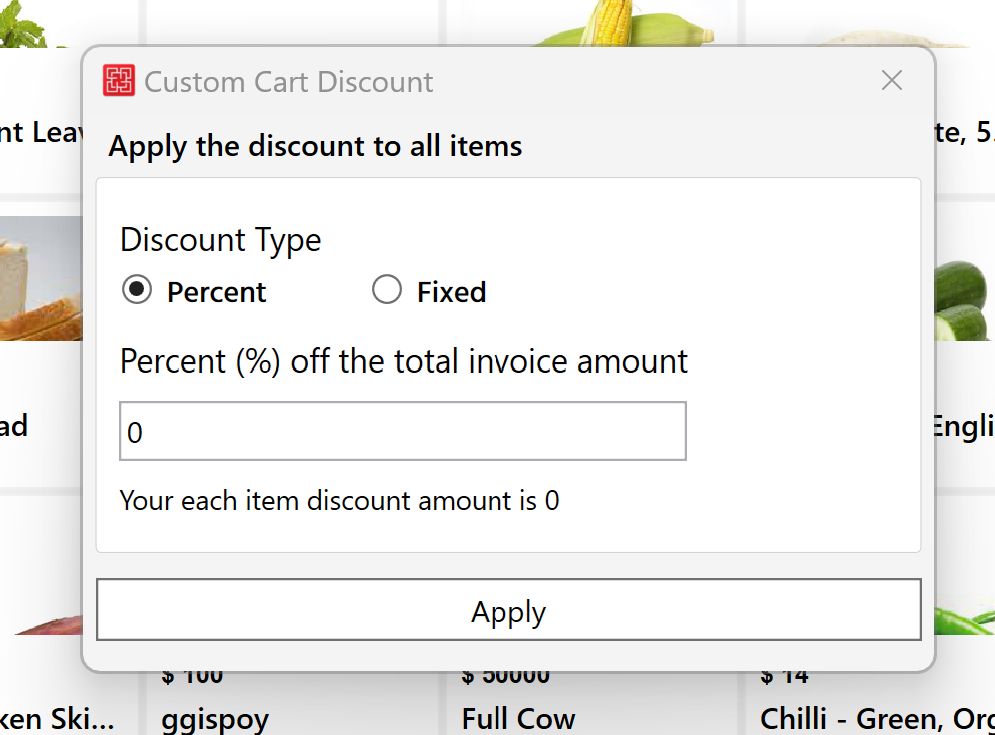
Cart discounts change the total displayed in the cart. The regular retail price of the order displays under the subtotal.
Note: Applying a custom cart discount always overrides custom line-item discounts.