Add POS Staff User Accounts in Nexchar POS Point of Sale
Employees are the engine that propels a store forward. To run your retail business successfully, you need proper employee management software. Fortunately, Nexchar provides a complete employee management system, so that store owners can create as many users as they need to run their business effectively.
How to create a staff profile
On the Nexchar management console, select Users from the menu and navigate to the Staff screen.

You can see the already created staff list. You can add new staff, modify staff data, or delete a staff member from this page.

Search staff
To search for a staff member, type the staff name in the search textbox and click the search button.
Add new staff
To create a new staff member, click the Add new staff button, and the page will redirect to the Create new staff page.

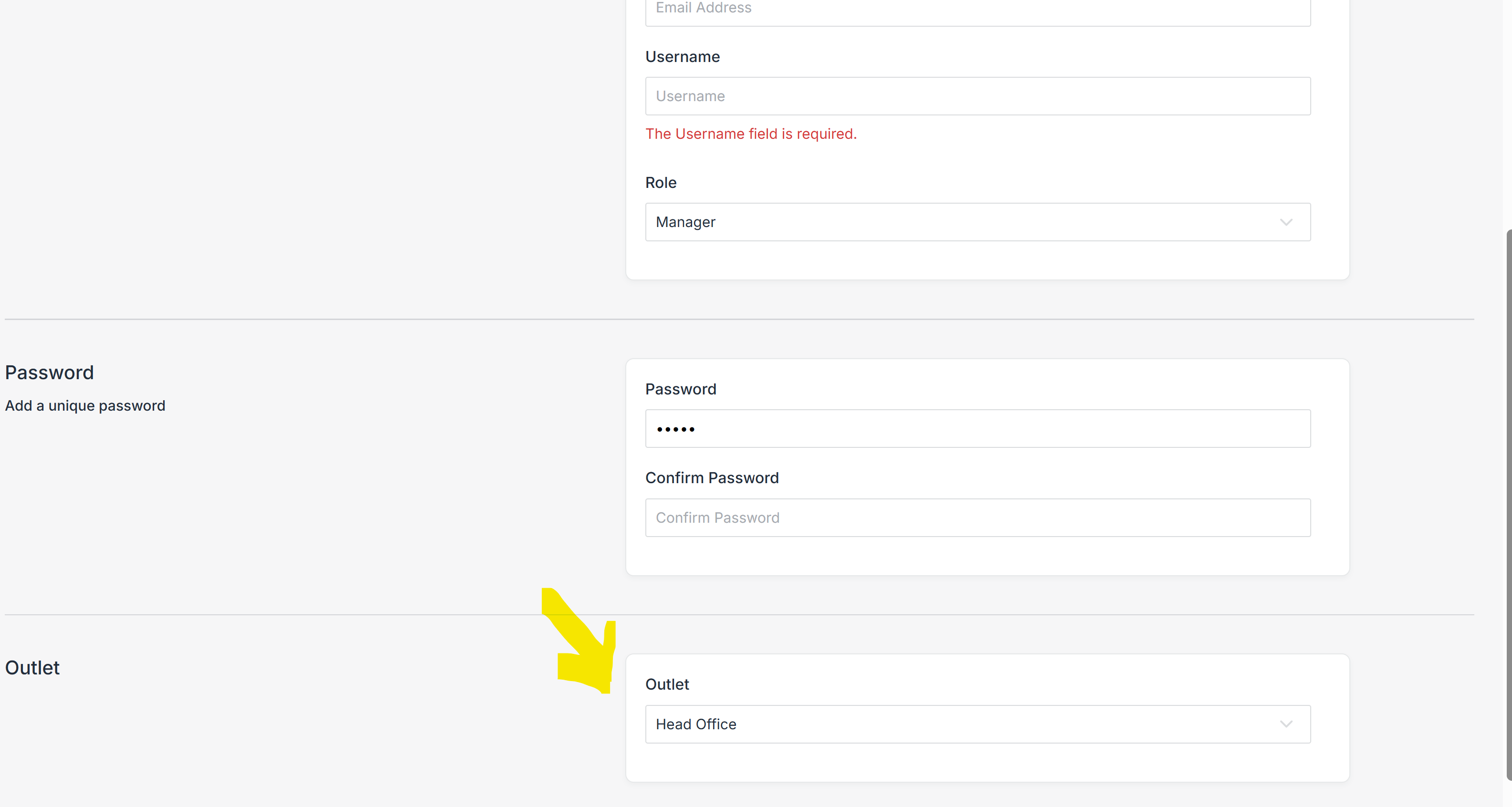
The following image shows the view of creating a new staff page. Using very little information, you can create a staff profile.

- Name: The name of the user. This field is required.
- Email: A unique email address for the user. This field is required.
- Username: A unique username for the user. This field is required.
- Role: There are three roles in Nexchar POS.
- Seller: Sellers are like non-management staff. A seller is like a cashier. They are able to do core tasks like sales but are restricted from management tasks such as adding and editing products. Privileges can be customized.
- Manager: The manager user level defines the management staff. The manager user is able to do everything a seller can do, as well as have access to their assigned store's reporting, payment, and purchase modules; manage expenses; etc., but they do not have access to the products module. A manager can create as many seller staff accounts as they want for their assigned store. Privileges can be customized.
- Administrator: The administrator user is the store owner. As an administrator user, you will have full access to view and change the entire store. An administrator can create multiple outlets for their store as well as create multiple manager accounts. An administrator can give administrative privileges to any staff member. If a staff member gets administrative privileges, then the staff can do similar tasks that an administrator can.
- Password: Specify a password for the user.
Click the Save button to complete the creation of your new user.
How to disable a staff profile
On the Nexchar management console, select Users from the menu and navigate to the staff screen. Click on the staff profile that you want to disable.
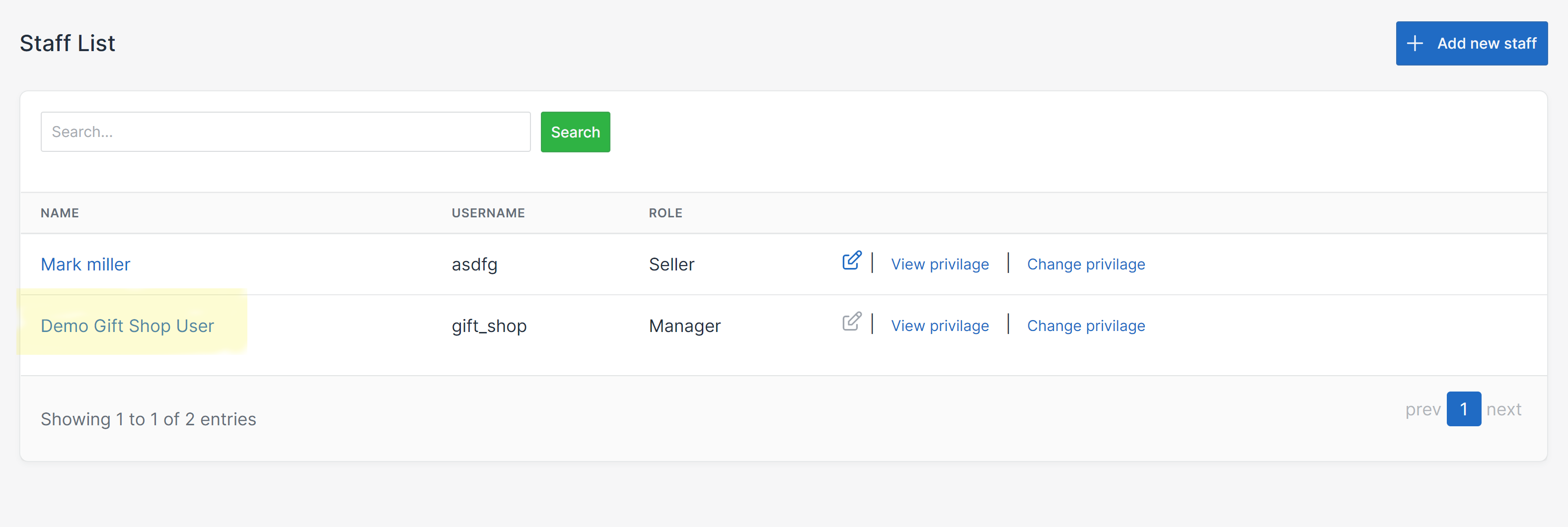
It will redirect you to the profile page.
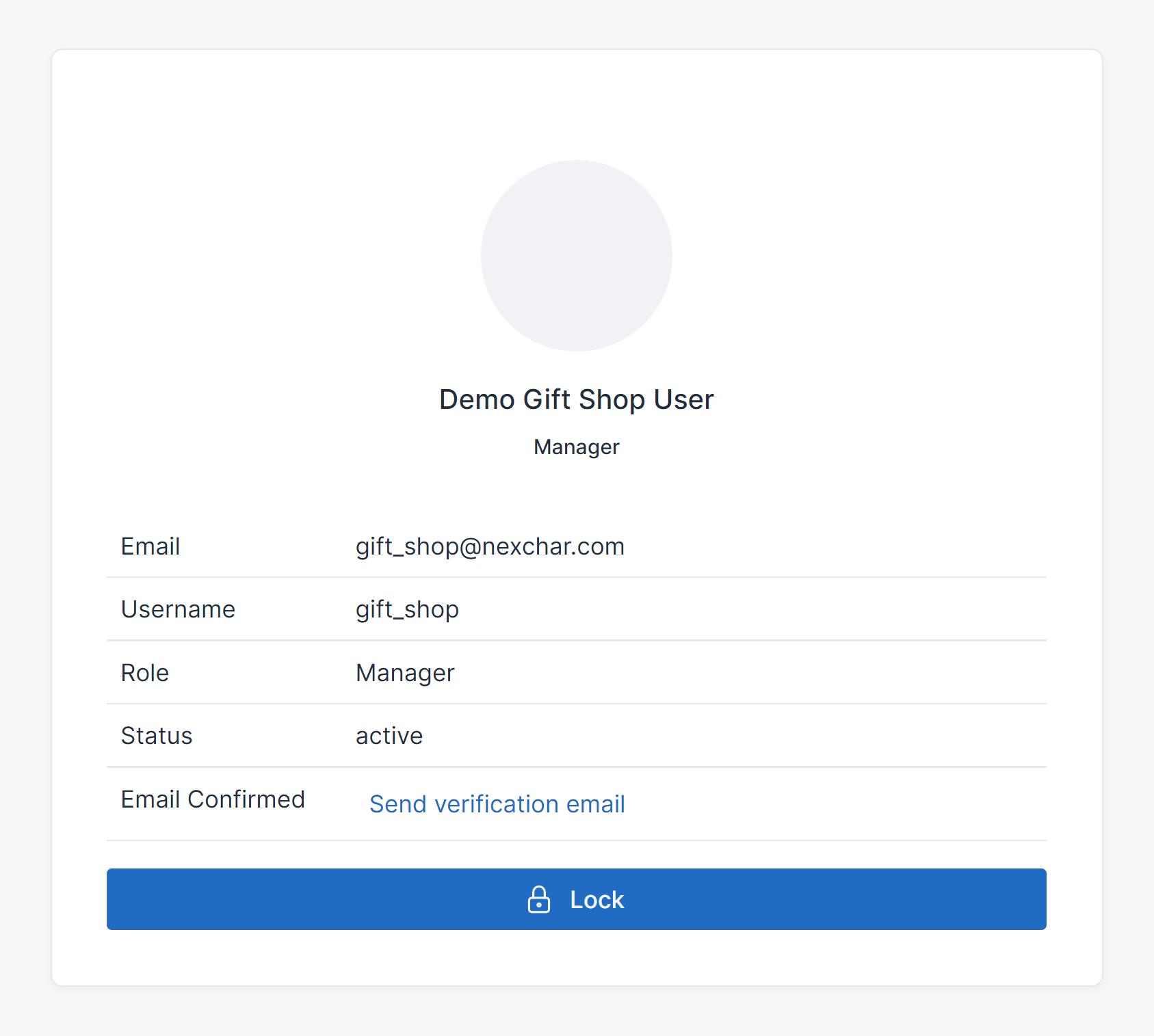
Click the lock button to disable the staff account.
Troubleshooting
How to create outlet-specific user?
Login with Administrator. Then the outlet selection option appears at the bottom of the page.
How can I delete a staff account?
You can't delete a staff account. You can disable a staff account. You can also change staff email or username.