
How to Add a Sales Note During a Sale in Nexchar POS
Adding a sales note allows you to include special instructions for an order—like packaging requests, delivery notes, or handling instructions. Follow the steps below using the screens shown:
Step 1: Add items & open the menu
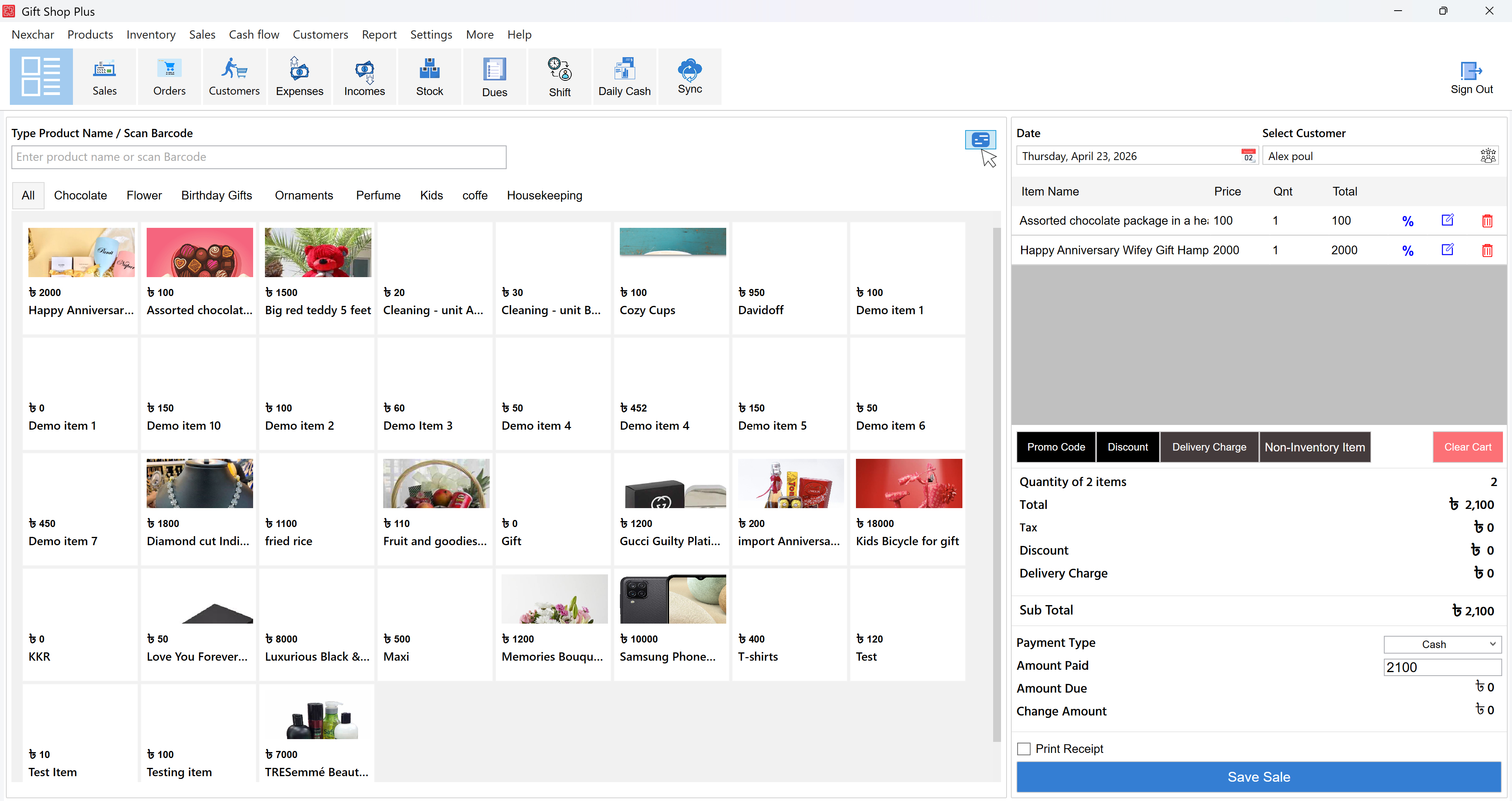
- Add products to the cart (bucket) from your sales screen.
- Click the menu icon at the top-right corner of the sales panel.
Step 2: Click "Add Customer Note"
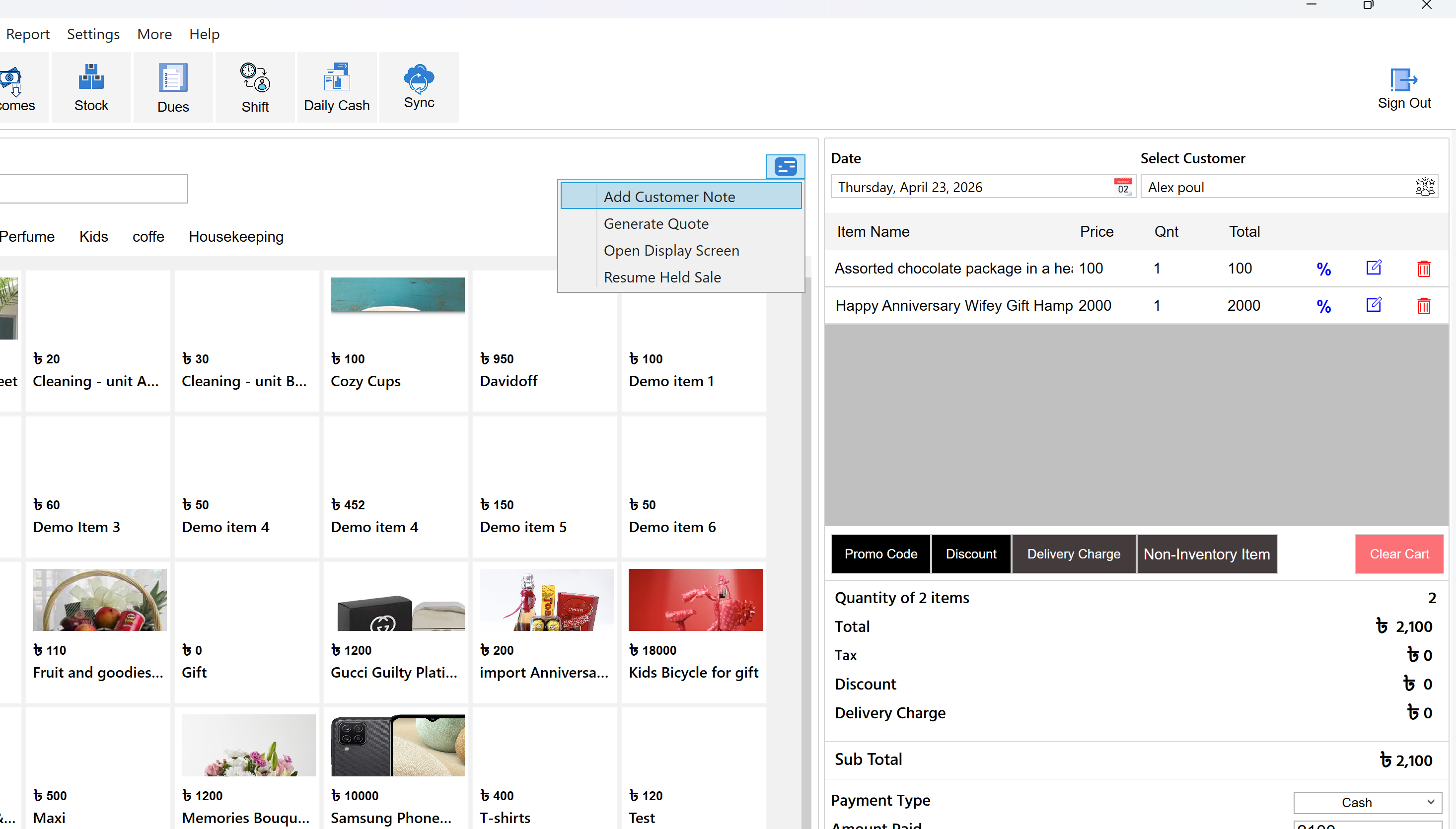
- From the dropdown menu, select Add Customer Note.
Step 3: Enter your note
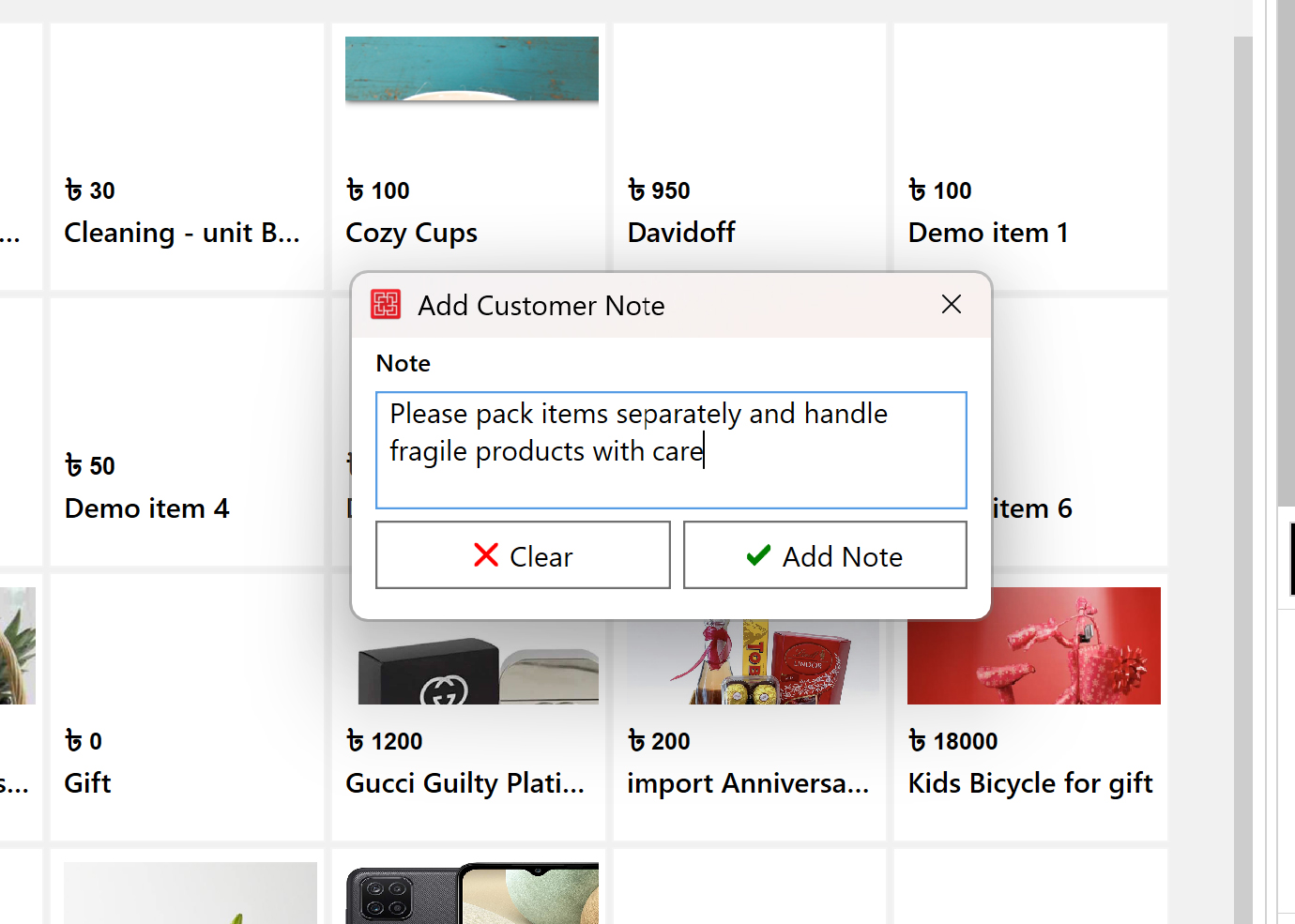
- A popup window will appear.
- Type your note (for example: "Please pack items separately and handle fragile products with care").
- Click Add Note to save.
Step 4: Complete the sale
- Continue the checkout process as usual.
- Click Save Sale.
- Print the receipt if needed.
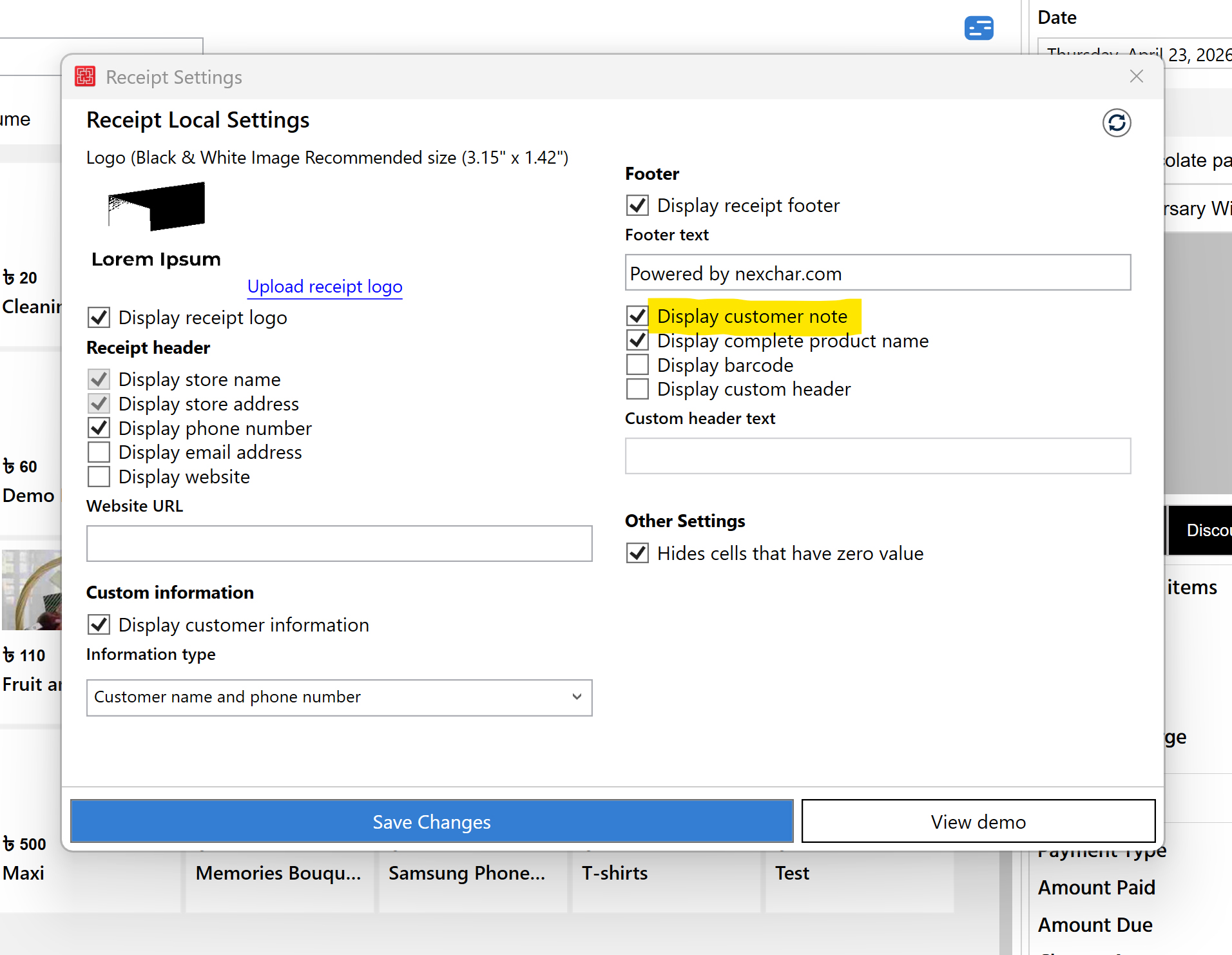
Step 5: Show the note on the receipt
- Go to Settings → Receipt Settings.
- Enable Display customer note.
- Click Save Changes.
Result
Your customer note will now be saved with the sale and printed on the receipt (if enabled). This helps ensure clear communication and better customer service.